
Adding Bundles to Your Store
Once you’ve created your bundles in the Bundable app, here are the ways to make them visible to your customers.
Option 1: Add to Navigation Menu
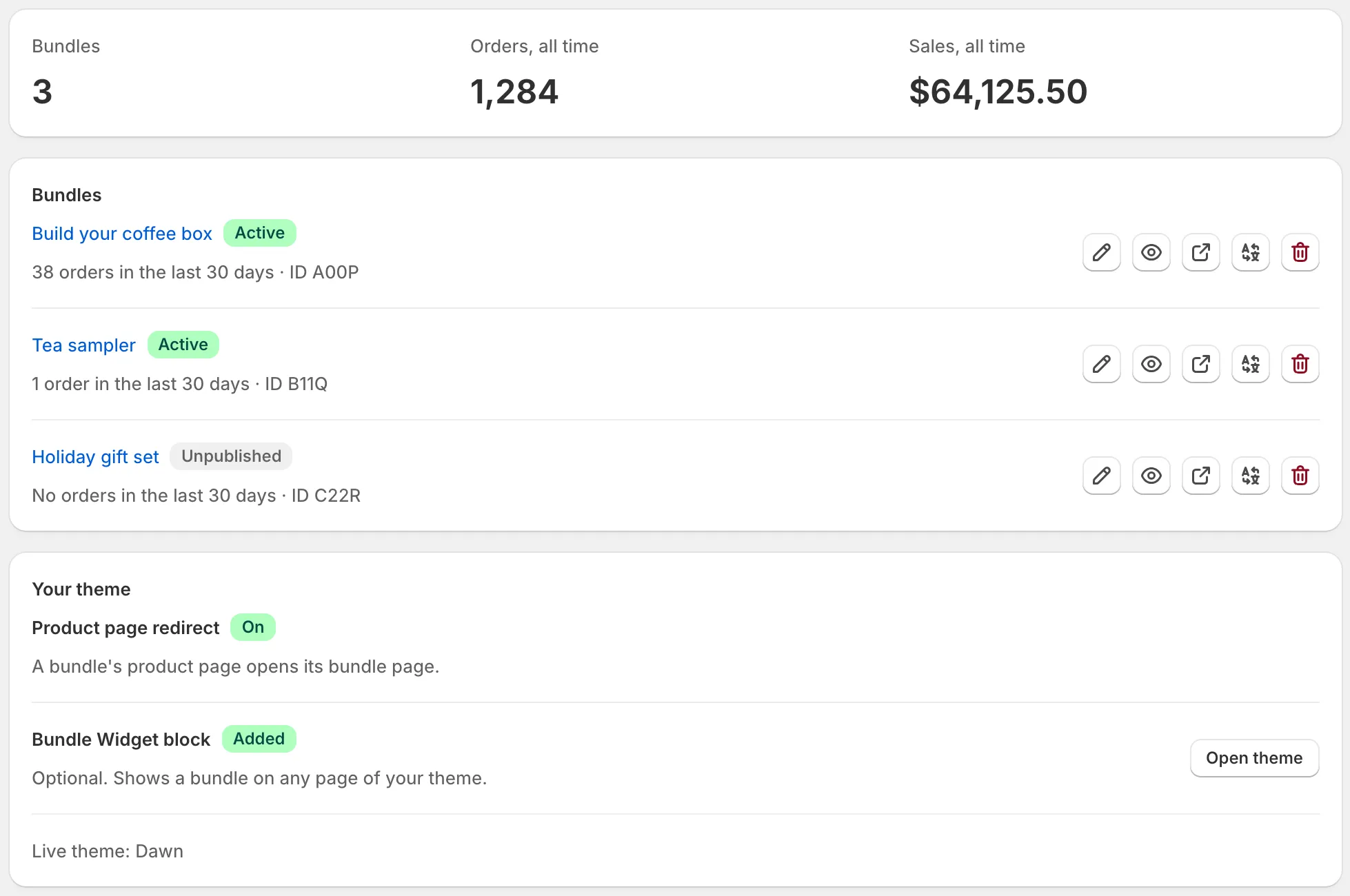
- On Bundable’s Home, click the View bundle page (eye) button next to the bundle and copy the address from your browser
- Go to Content → Menus in your Shopify admin
- Edit your main menu (or any menu)
- Add a new menu item with the bundle URL
- Give it a customer-friendly label (e.g., “Build Your Own Box”)
- Save
Option 2: Add to a Collection
- Go to Products → Collections in your Shopify admin
- Select or create a collection
- Manually add the bundle product that Bundable created
- Save changes
When customers click the bundle product in the collection, they’ll be redirected to the bundle builder page (if the Bundle Product Redirect app embed is enabled). To check, look at Product page redirect under Your theme on Bundable’s Home. If it says Off, click Turn on redirect and save in the theme editor.
Option 3: Embed in Your Theme (Recommended)
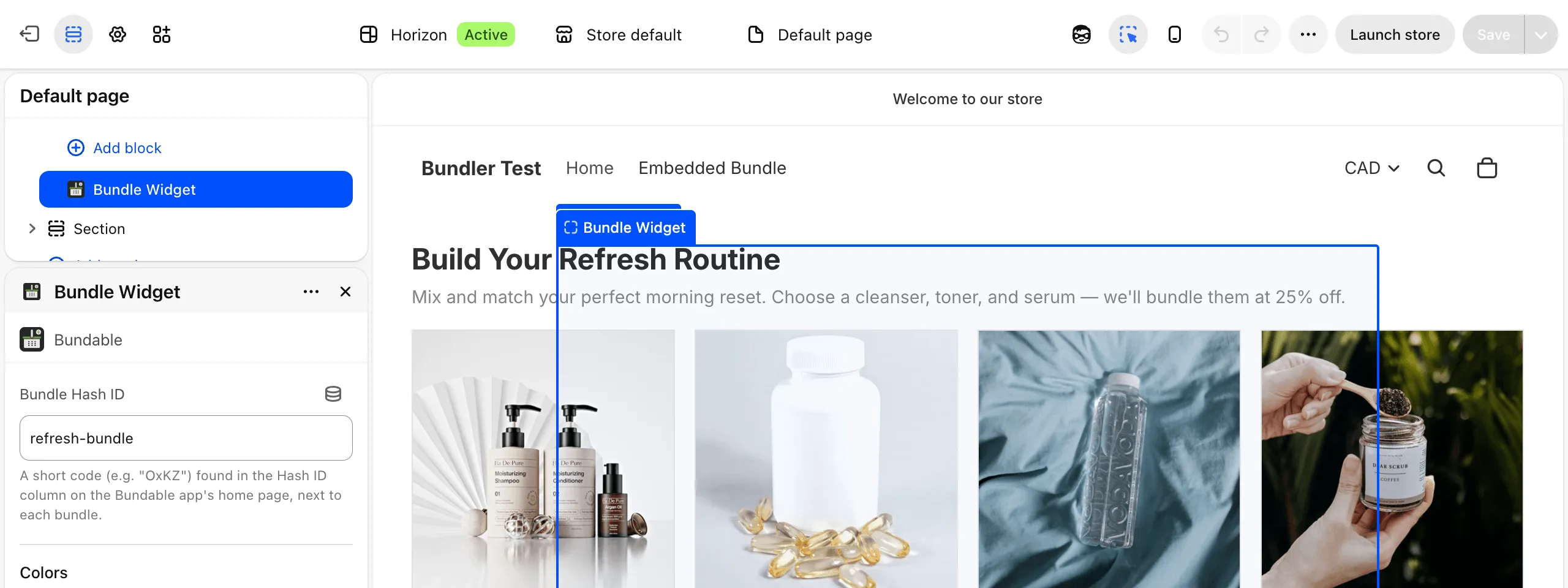
- Go to Online Store → Customize
- Navigate to the page where you want the bundle
- Add the Bundle Widget block (listed under Bundable)
- Enter the bundle’s ID. It is listed under the bundle’s name on Bundable’s Home
- Save
This method places the full bundle builder directly on any page of your theme, giving you the most flexibility in where bundles appear.
Need help? Contact us at support@soviapps.com.